
Brackets in. Editable HDR DNG out.
Prepare supported camera RAW brackets on iPhone, iPad, or Mac, then continue your file-based editing workflow. Intended destinations include Adobe Lightroom, Lightroom Classic, and Adobe Photoshop through Adobe Camera Raw.
Before you begin
Capture a consistent bracket.
Same scene
Choose exposures of the same composition. A tripod provides the most reliable framing and alignment.
Camera originals
Use supported Bayer RAW originals rather than rendered exports or files that were renamed to look like RAW files.
Direct access
Import directly from an attached memory card or choose RAW files already stored on your Apple device.
Free single-bracket workflow
Start with a supported single bracket.
Select supported RAW exposures from the same scene, review the bracket, and merge to an editable HDR DNG. Supported single-bracket merging remains available without Pro.
Choose RAW images
Select CR2, CR3, NEF, ARW, or compatible camera-original Bayer RAW DNG files from the same bracket.
Review the bracket
Confirm that every exposure belongs to the same scene. Remove or replace a mistake before starting the merge.
Validate
HDR Merge Pro checks file access and bracket compatibility, then inspects the underlying RAW structure before decoding begins.
Merge
The app reports progress through validation, decode, alignment, merge, quantization, and HDR DNG writing.
Review the result
A completed card presents the merged HDR DNG and keeps the result available while you choose what to do next.
Save or continue
Save to Files or Finder, share the HDR DNG, add it to Photos, or continue editing in Adobe Camera Raw or another compatible application.
About the output
A RAW-oriented result, not a finished listing photo.
The output is an HDR Digital Negative (DNG) intended for continued work in a compatible RAW processor. It is not a tone-mapped JPEG, an Apple ProRAW photo, or a replacement for the final color, perspective, retouching, and delivery stages of your workflow.
- The suggested filename is derived from a source exposure and adds an
-HDR.dngsuffix. - Photos can store the HDR DNG as an original resource, but a compatible RAW editor is recommended for the intended workflow.
- Application behavior can vary by version and by the DNG features each editor supports.
Pro batch workflow
Use Pro for multiple brackets.
Import supported RAW brackets from your shoot, review the suggested groups, and process the scenes you are ready to merge. Pro adds batch processing and larger supported brackets.
Import supported RAW files.
Choose your camera originals from Files, a supported file provider or connected storage.
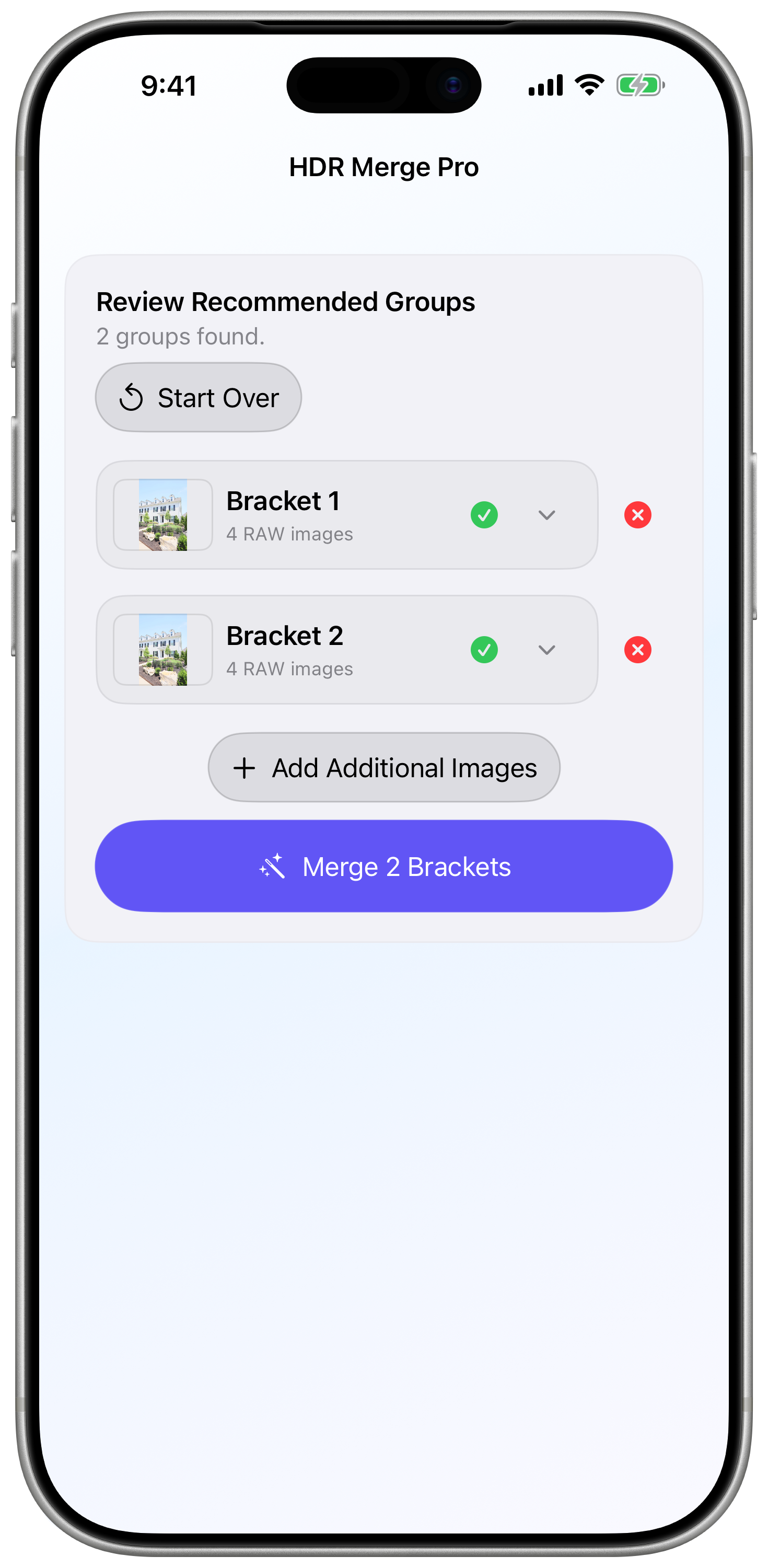
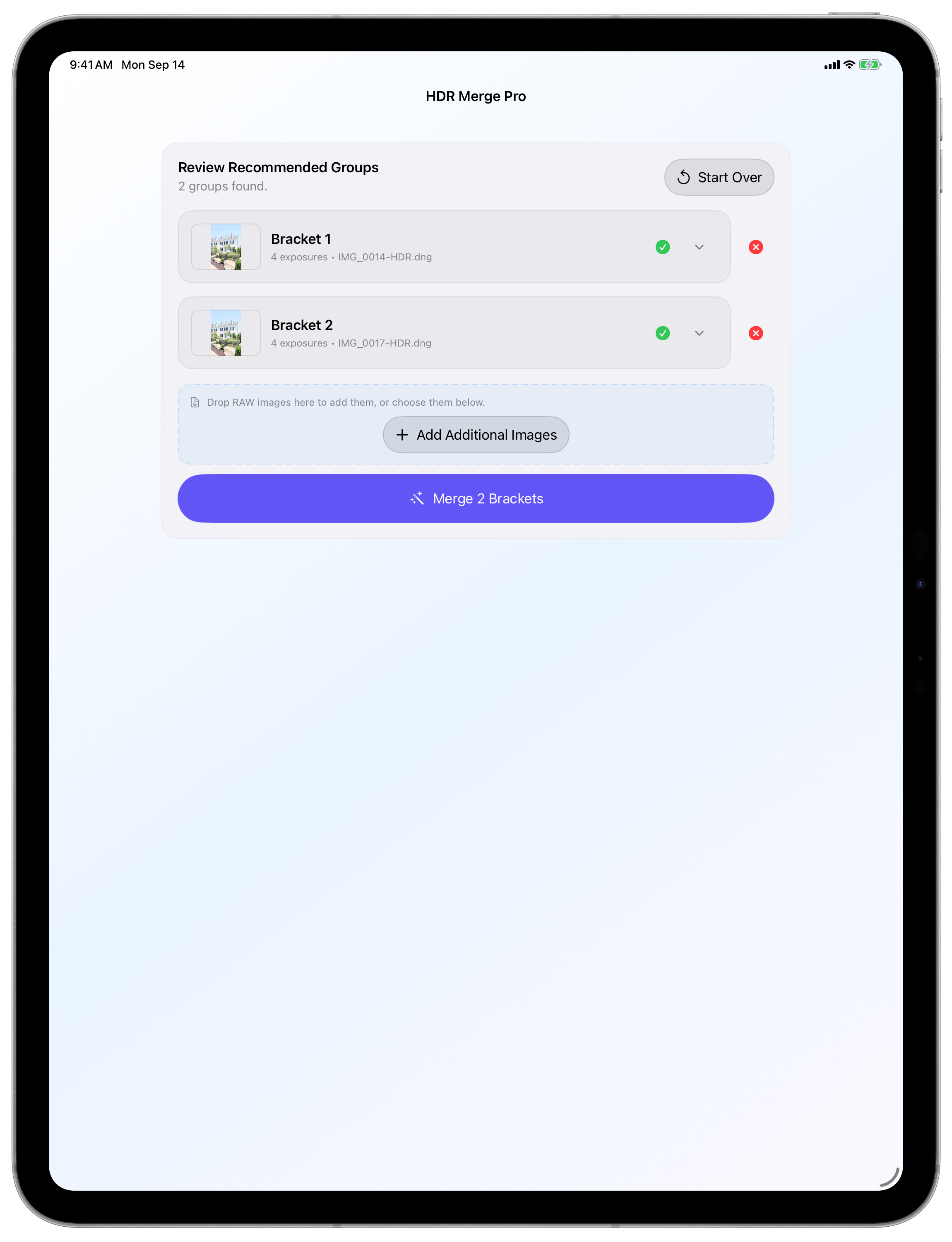
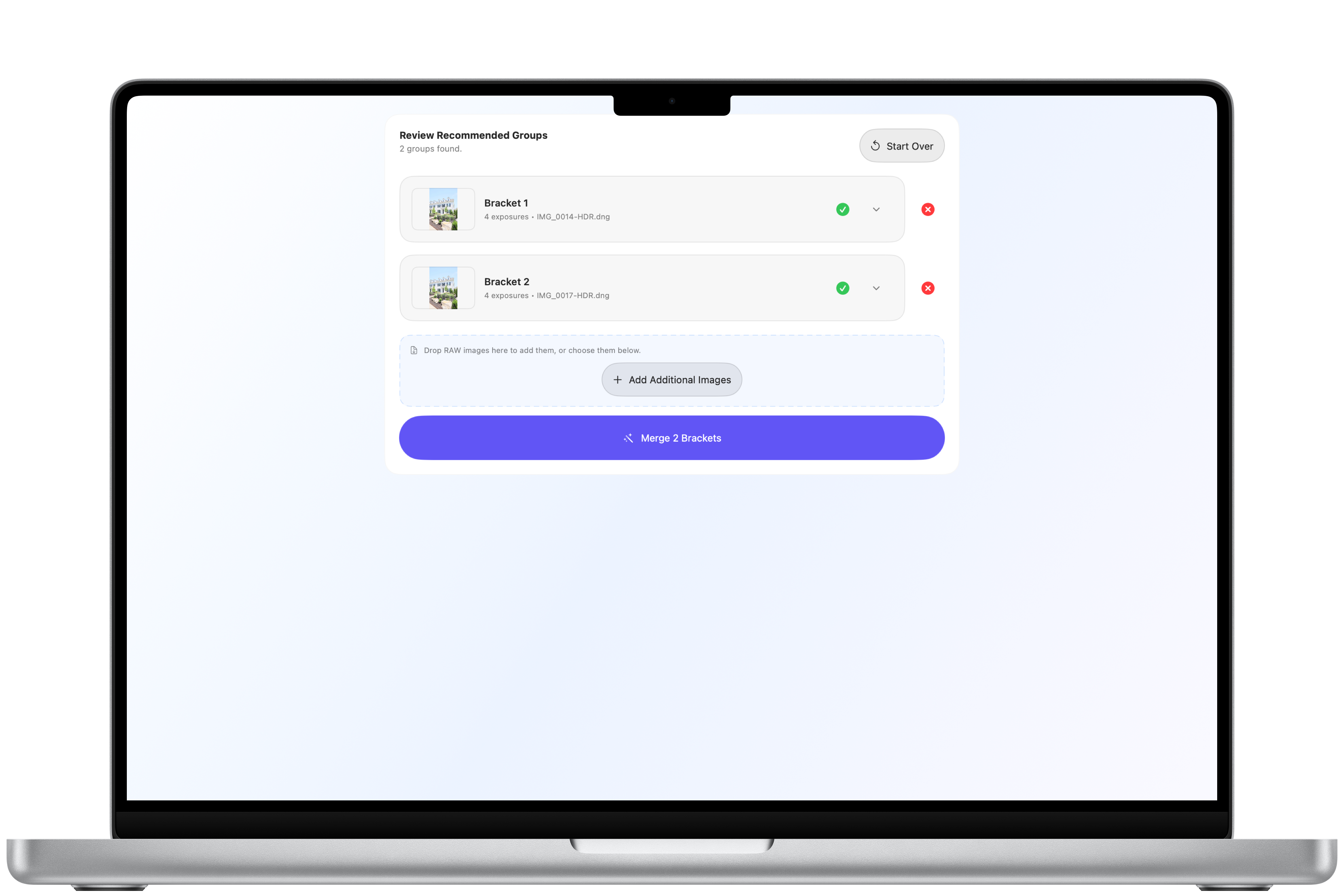
Review suggested groups.
Confirm that each group contains exposures of the same scene. Correct the groups and resolve files that need attention before merging.
Process the batch.
Follow overall and per-group progress. Completed results remain available if another group cannot be completed.
Continue editing.
Save editable HDR DNG files and finish your images in a compatible RAW editor. A DNG preview is not a finished listing photograph.
Native review on each platform
Review suggested groups where you work.
The same native review flow is available on iPhone, iPad, and Mac. Demonstration uses repeated sample images.
Compatible destinations
Prepare DNGs for Lightroom and Photoshop workflows.
Merge bracketed RAW files captured with your camera, then save an editable HDR DNG for continued editing. Intended workflows include Adobe Lightroom, Adobe Lightroom Classic, and Adobe Photoshop through Adobe Camera Raw.
Ready to try it?
Create your next HDR DNG.
Start free with supported single-bracket merges. Pro adds batch processing and larger brackets on supported iPhone, iPad and Mac devices.
The current Pro price and billing period are shown in the app before you subscribe. Manage or cancel Pro through your Apple Account subscription settings.